
Overview
APK files are essential for Android devices and play a crucial role in how apps work on your phone. They help you install apps and games, whether from the Google Play Store or other sources. Understanding APK files makes you a smarter Android user and helps you stay safe online.
This guide explains everything about APK files in simple terms. You’ll learn what APK files contain, how they work, and how to use them safely. By the end of this article, you’ll be confident handling APK files on your Android device.
What is an APK File?
Understanding APK Files
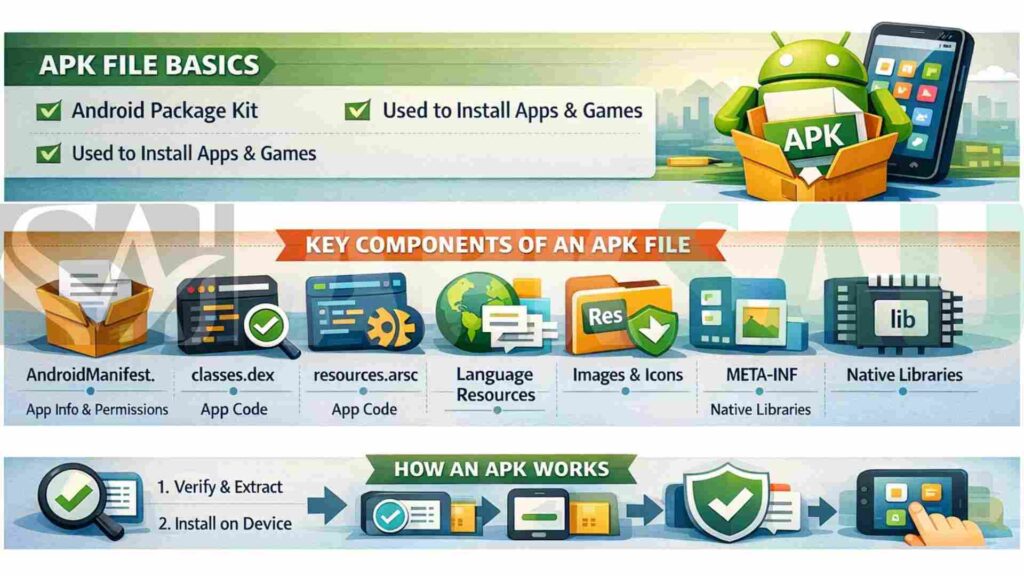
APK stands for Android Package Kit. It is a file format that Android uses to distribute and install applications. Think of it like a box that contains everything an app needs to work. When you download an app from the Google Play Store, you’re actually downloading an APK file.
What Does an APK Contain?
An APK file holds all the pieces of an Android app. It includes the app’s code, images, sounds, and instructions. The file also contains information about what permissions the app needs. Everything is packed together in one compressed file format.
Components of APK File
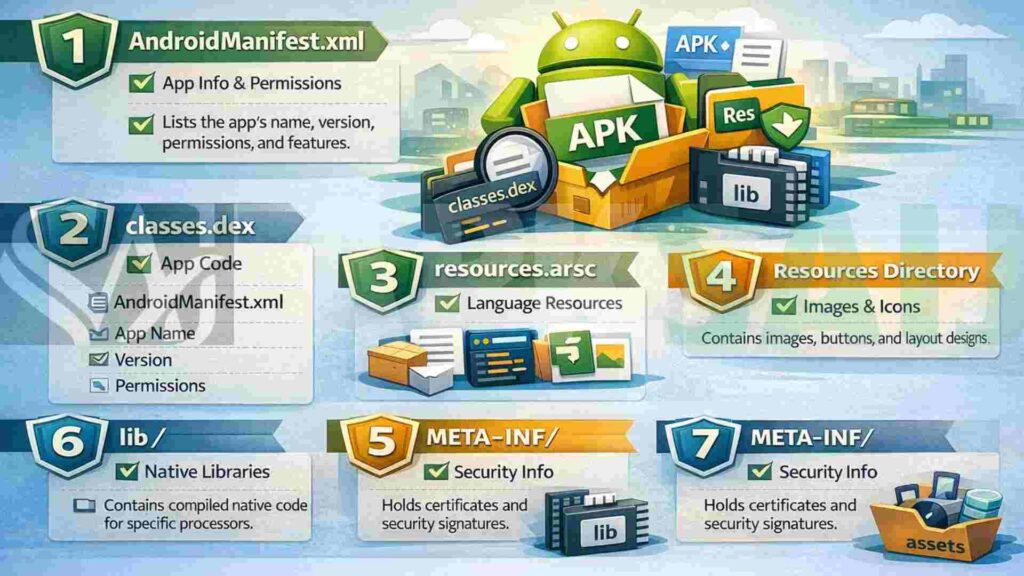
1. AndroidManifest.xml
This file is like the app’s identity card. It tells your phone the app’s name, version, and required permissions. The manifest also lists what features the app can access. Without this file, Android won’t know how to install the app.
2. classes.dex
The DEX file contains the app’s main code. DEX stands for Dalvik Executable format. This code tells the app what to do and how to behave. The Android system reads this file to run your application.
3. resources.arsc
This file stores compiled resources for the app. It includes text strings in different languages. The file helps apps support multiple languages easily. It makes apps work for users around the world.
4. Resources Directory
The resources folder holds images, layouts, and design elements. It contains icons, buttons, and screen designs. This directory makes your app look colorful and attractive. All visual elements live in this folder.
5. META-INF/ (Metadata Information)
This folder contains security certificates and signatures. It proves the app comes from a trusted developer. The META-INF folder helps prevent fake or modified apps. It keeps your device safe from harmful changes.
6. lib/ (Libraries Folder)
The libraries folder stores native code for different processors. It contains compiled code for various phone chips. This folder ensures the app runs smoothly on different devices. Not all APK files have this folder.
7. assets/ (Assets Folder)
Assets include extra files the app needs. These can be fonts, videos, or database files. The app can access these files whenever needed. This folder is optional and not all apps use it.
What Are APK Files Used For?
Why Download an APK?
APK files let you install apps outside the Google Play Store. Some apps aren’t available in your country’s app store. Developers also share APK files for testing new features. You can install older versions of apps using APK files.
How Does an Android Package Kit (APK) Work?
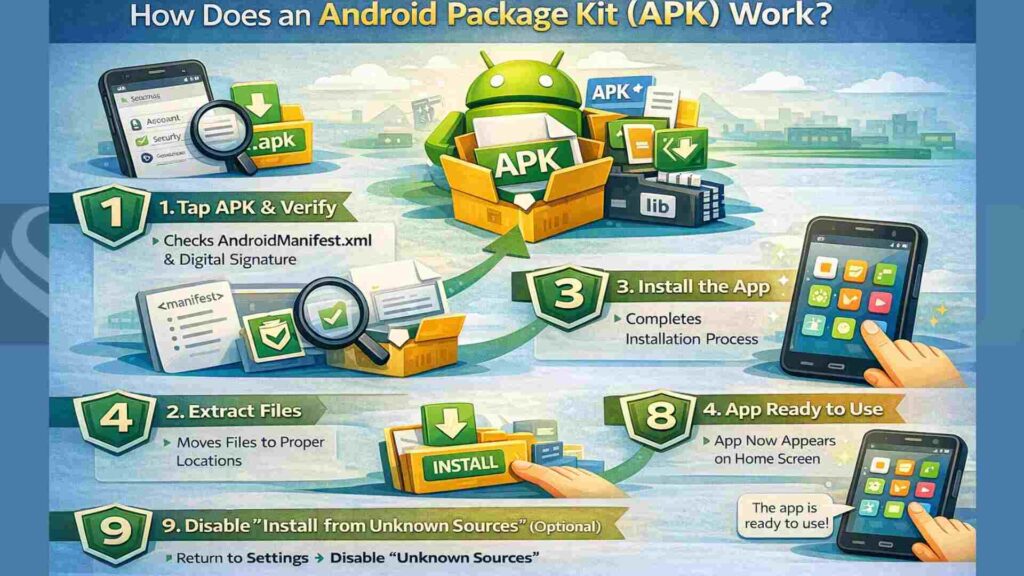
When you tap an APK file, Android checks its contents first. The system reads the AndroidManifest.xml to understand the app’s requirements. Then it verifies the digital signature for security. After verification, Android extracts all files to the correct locations. Finally, the app appears on your home screen, ready to use.
Where to Download APK Files and How to Install Them
Using Google Play Store
Google Play Store is the safest place to get Android apps. The store automatically downloads and installs APK files for you. Every app goes through security checks before appearing in the store. You don’t need to worry about manual installation here.
Installing APK Files Manually
You can download APK files from trusted websites. Popular sources include APKSaij.com, APKPure.com, and developer websites. Always check the website’s reputation before downloading. Manual installation gives you more control over app versions.
How to Open and Install APK (Android Package Kit) Files?
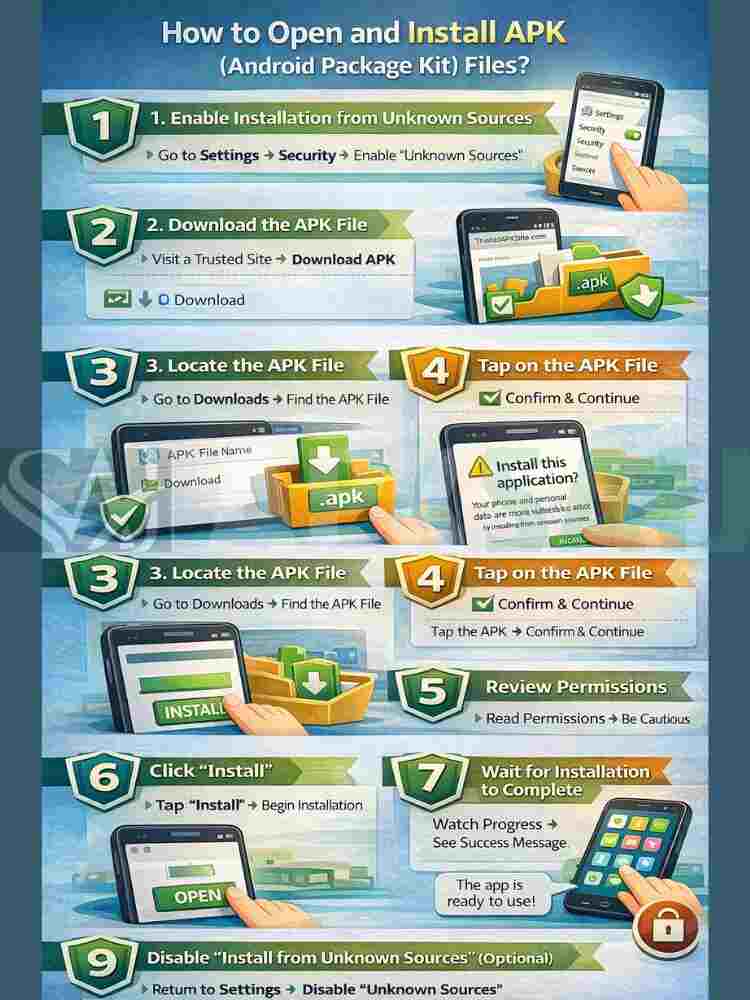
Step 1: Enable Installation from Unknown Sources
Open your phone’s Settings app. Go to Security or Privacy settings. Find the option called “Install unknown apps” or “Unknown sources.” Turn on this permission for your file manager or browser.
Step 2: Download the APK File
Visit a trusted website using your phone’s browser. Find the app you want and tap download. The APK file will save to your Downloads folder. Wait for the download to complete fully.
Step 3: Locate the APK File
Open your file manager app on your phone. Navigate to the Downloads folder or notification bar. Look for the APK file you just downloaded. The file will have a .apk extension at the end.
Step 4: Tap on the APK File
Touch the APK file to start installation. A new screen will appear asking for confirmation. Your phone might show a warning about unknown sources. This is normal for manually installed apps.
Step 5: Review Permissions
The installation screen shows what permissions the app needs. Read through the list carefully before continuing. Check if the permissions make sense for the app. Be cautious if an app asks for too many permissions.
Step 6: Click “Install”
Tap the Install button to begin the process. Your phone will extract and install the app. The installation usually takes a few seconds. Don’t close the screen until it finishes.
Step 7: Wait for Installation to Complete
A progress bar shows the installation status. The app is copying files to your phone. Wait patiently without pressing other buttons. You’ll see a success message when it’s done.
Step 8: Open the App
Tap the “Open” button to launch your new app. The app icon also appears in your app drawer. You can now use the app like any other. The installation process is complete at this point.
Step 9: Disable “Install from Unknown Sources” (Optional)
Go back to your Security settings for better protection. Turn off the “Unknown sources” permission you enabled earlier. This prevents accidental installation of harmful apps. You can always turn it back on when needed.
Is it Possible to Install APK Files on Non-Android Devices?
Yes, you can run APK files on computers and other devices. Windows 11 has built-in support for Android apps through the Amazon Appstore. You can also use emulators like BlueStacks or NoxPlayer on your PC. These programs create a virtual Android environment on your computer. iPhones and iPads cannot run APK files because they use different software.
Risks of Downloading and Using APK Files
Malware, Viruses, and Ransomware
Harmful APK files can infect your phone with malware. Viruses steal your data or damage your system. Ransomware locks your files and demands money to unlock them. Always download APKs from trusted sources only.
Loss of Device Control
Malicious apps can take control of your phone. Hackers might access your camera or microphone secretly. They could send messages or make calls without permission. Your phone might start behaving strangely or slowly.
Theft of Sensitive Data
Dangerous apps steal passwords, photos, and personal information. Banking details and credit card numbers are common targets. Your contacts and messages could be sent to criminals. This information can be used for identity theft.
Illegal or Pirated Apps
Some APK files contain cracked or pirated apps. Using pirated software is against the law in most countries. These apps often contain hidden malware or spyware. Developers lose money when people use pirated versions.
Are Rogue APKs Threatening the Security of Your Phone?
Rogue APKs are modified versions of legitimate apps. They look real but contain dangerous code inside. These fake apps can bypass normal security measures. They pose serious threats to your privacy and data safety.
How to Ensure APK Files Are Safe
Stick to Google Play Store and Other Reputable Sources
Google Play Store offers the highest level of security. APKMirror and APKPure are reliable alternative sources. Official developer websites are also safe for downloads. Avoid random websites that promise free premium apps.
Check Reviews from Other Users
Read comments and reviews before downloading any APK. Other users share their experiences with the app. Look for warnings about bugs or security issues. High ratings don’t always mean an app is safe.
Update Apps Regularly
Developers release updates to fix security problems. Old app versions might have known vulnerabilities. Enable automatic updates when possible for better protection. Regular updates keep your apps running safely.
Update Your Android OS Regularly
Android system updates include important security patches. New versions protect against the latest threats. Go to Settings and check for system updates monthly. Keeping Android updated is crucial for overall security.
Manage App Permissions
Review what permissions each app has on your phone. Remove unnecessary permissions from apps you don’t trust. An app should only access what it needs to function. Be suspicious if a flashlight app wants your contacts.
Delete Apps You No Longer Use or Need
Unused apps can still pose security risks over time. They might not receive updates anymore and become vulnerable. Removing old apps frees up storage space too. Clean your phone every few months for better security.
Use Malware Protection Solutions
Install a trusted antivirus app from the Play Store. Apps like Norton, Avast, or Bitdefender scan for threats. They can detect malicious APK files before installation. Enable real-time protection for continuous monitoring.
Using APK Tool
APK Tool is a software for advanced users to inspect APK files. It lets you see inside an APK and check its code. You can identify suspicious elements before installing the app. This tool requires technical knowledge to use properly.

How to Make Your Android Phone Activity APK-Safe
- Enable Google Play Protect in your device settings for automatic scanning
- Only download apps from official stores or verified developer websites
- Read app permissions carefully and deny suspicious requests
- Keep your Android operating system updated to the latest version
- Install a reputable mobile security app for extra protection
- Avoid clicking on suspicious links in emails or text messages
- Use strong passwords and enable two-factor authentication on important apps
- Regularly back up your data to cloud storage or a computer
- Don’t root your phone unless necessary, as it reduces security
- Check app reviews and ratings before downloading anything new
How to Create an APK File?
Creating an APK requires Android Studio or similar development software. First, write your app’s code in Java or Kotlin. Design the user interface with XML layout files. Add all necessary resources, such as images and icons, to your project.
Configure the AndroidManifest.xml file with app details and permissions. Test your app using the Android emulator built into Android Studio. When ready, click “Build” and select “Generate Signed Bundle/APK.” Sign your APK with a digital certificate for security. The APK file will be saved in your project’s output folder.
How to Test an APK File?
1. Using BrowserStack
BrowserStack lets you test APKs on real devices through your browser. Upload your APK file to the BrowserStack platform. Choose from hundreds of different Android devices and versions. Test your app’s performance without owning physical devices.
Why Test APK Files on BrowserStack App Live?
BrowserStack provides access to real devices, not emulators. You can test on the latest and oldest Android versions. The service lets multiple team members test simultaneously. It saves money compared to buying many physical devices.
2. Using Android Studio Emulator
Android Studio includes a built-in virtual device emulator. Create a virtual device matching your target specifications. Install the APK by dragging it into the emulator window. The emulator simulates real phone behavior for testing purposes.
How to Test APK Files on a PC?
Install an Android emulator like BlueStacks on your computer. Launch the emulator and wait for it to fully load. Drag your APK file into the emulator window to install it. Test all features and functions as you would on a real phone.
APK vs AAB (Android App Bundle)
| Feature | APK (Android Package Kit) | AAB (Android App Bundle) |
| File Type | Complete app package ready to install | Publishing format for Google Play Store |
| Size | Larger file size with all resources | Smaller download size for users |
| Distribution | Can be shared and installed directly | Only works through the Google Play Store |
| Optimization | Contains resources for all devices | Google Play creates optimized APKs for each device |
| Compatibility | Works on all Android devices | Requires Google Play Store to generate device-specific APKs |
| Updates | Must download the entire app again | Only downloads changed components |
| Best Use | Direct distribution and testing | Official app store publishing |
Conclusion
APK files are the building blocks of Android applications. Understanding them helps you make smarter choices about app installation. Always download from trusted sources to keep your device safe. Following security best practices protects your personal information from threats.
Remember to check permissions and read reviews before installing apps. Keep your phone and apps updated regularly for better security. Use APK files wisely, and your Android experience will be smooth and secure. Stay informed and enjoy the flexibility that Android offers.
Please let us know in the comment section: Does this blog post help you understand what an APK File is and how it works?